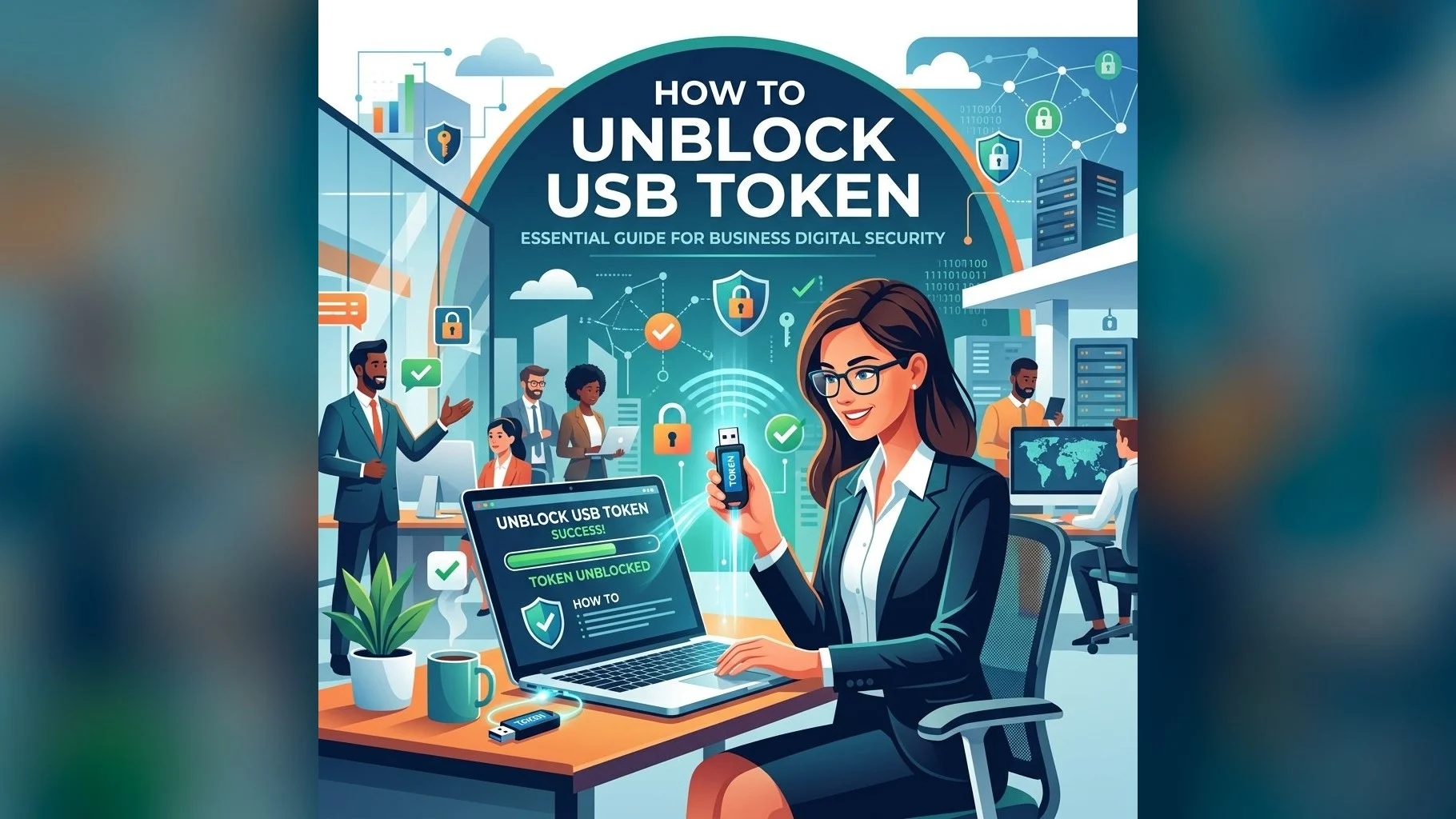
A USB token locks (becomes blocked) when you enter the wrong PIN too many times — typically 5–6 consecutive wrong attempts. This is a security feature of FIPS-compliant cryptographic tokens designed to prevent brute-force attacks. A locked token shows an error like "Token is blocked" or "CKR_PIN_LOCKED" and refuses all PIN entry. Here is how to handle a blocked token.
Understanding User PIN vs SO PIN
Most DSC USB tokens have two levels of authentication:
- User PIN: The PIN you enter daily to sign documents — 6 to 16 digits typically
- SO PIN (Security Officer PIN): An administrative PIN used to reset a locked User PIN — known only to the person who initialised the token (the RA/CA or the user at setup)
- If you know your SO PIN, you can reset the User PIN yourself using the token manager software
- If neither PIN is known (both are blocked), the token must be re-formatted — which erases all certificates and keys on it
How to Unblock Using SO PIN (ePass2003)
- Open ePass2003 PKI Manager on your computer
- Insert the blocked token — it will show as "Blocked" or "Locked" in the status field
- Click Change User PIN or Unblock Token
- Enter the SO PIN when prompted (this is different from the user PIN)
- Set a new User PIN and confirm it
- The token is now unblocked and your DSC is accessible again with the new PIN
For SafeNet eToken: use SafeNet Authentication Client → Token Properties → Unblock Token and follow similar steps.
If SO PIN is Also Unknown or Blocked
- The token must be reformatted — all certificates and keys on the token are wiped
- You will need to apply for a fresh DSC and download it onto the reformatted or new token
- Contact DSC.in.net — we can guide you through the reformat and reissuance process
- A fresh DSC after token reformat takes 24–48 hours, similar to a new application
- Your previous DSC's validity period is lost — the new certificate starts fresh
Token Blocked? We Can Help
Our support team guides you through token unblocking or arranges a quick replacement DSC.
Prevention: always store your USB token PIN securely (password manager, physical safe) and note down the SO PIN when setting up a new token. Never write the PIN on the token itself or on a sticky note attached to it. If you do not know your SO PIN, it may have been set by the RA — contact us with your original DSC purchase details and we will try to assist.