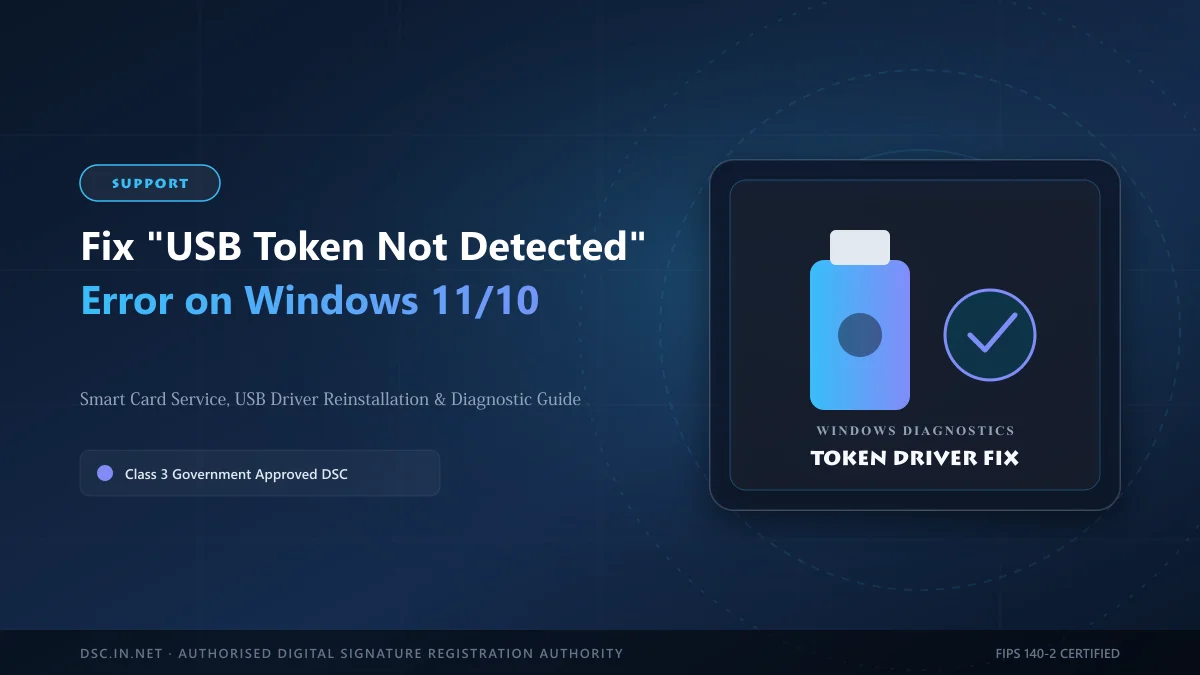
One of the most frustrating experiences during critical MCA filing, income tax submission, or tender closing hours is receiving the error message: "USB Token Not Detected", "Please insert token", or "No certificates found in certificate store". This issue is almost always caused by driver conflicts, stopped Windows services, or browser permission blocks rather than a hardware failure.
Fix 1: Restart the Windows Smart Card Service
Windows communicates with cryptographic USB tokens via the native Smart Card background service. If this service is stopped, no application can detect your certificate:
- Press
Windows Key + Ron your keyboard to open the Run dialog. - Type
services.mscand press Enter. - Scroll down the list and locate Smart Card.
- Right-click on Smart Card and check its status. If stopped, click Start. If running, click Restart.
- Right-click → Properties, and set Startup type to Automatic so it launches on every system boot.
Fix 2: Reinstall Token Driver Software (Admin Mode)
Corrupted or outdated middleware drivers prevent the certificate from propagating to the Windows Certificate Store:
- Open Windows Control Panel → Programs and Features → Uninstall your existing token driver (e.g., ePass2003 or ProxKey).
- Download the latest official token driver from our DSC.in.net Downloads section.
- Right-click the downloaded setup file and choose Run as administrator.
- During installation, select Microsoft Base Smart Card CSP when prompted.
- Restart your computer before plugging the token back in.
Stuck with Token Driver Errors?
Our technical support team provides live remote troubleshooting for token connectivity.
Fix 3: Verify in Windows Certificate Manager
Confirm whether Windows has registered your certificate:
- Press
Win + R, typecertmgr.msc, and hit Enter. - Double-click on Personal → Certificates.
- Your name should appear with your Certifying Authority details and expiry date.
- If your certificate appears here, your token hardware is operating properly, and the issue lies in your portal PKI component (e.g., emBridge or DSC Signer).
Fix 4: Switch USB Ports and Disable USB Power Saving
Avoid connecting tokens through unpowered external USB hubs. Plug directly into the motherboard USB port on the back of your desktop or directly into your laptop port. Furthermore, disable USB selective suspend in Windows Power Options to prevent sudden disconnects.