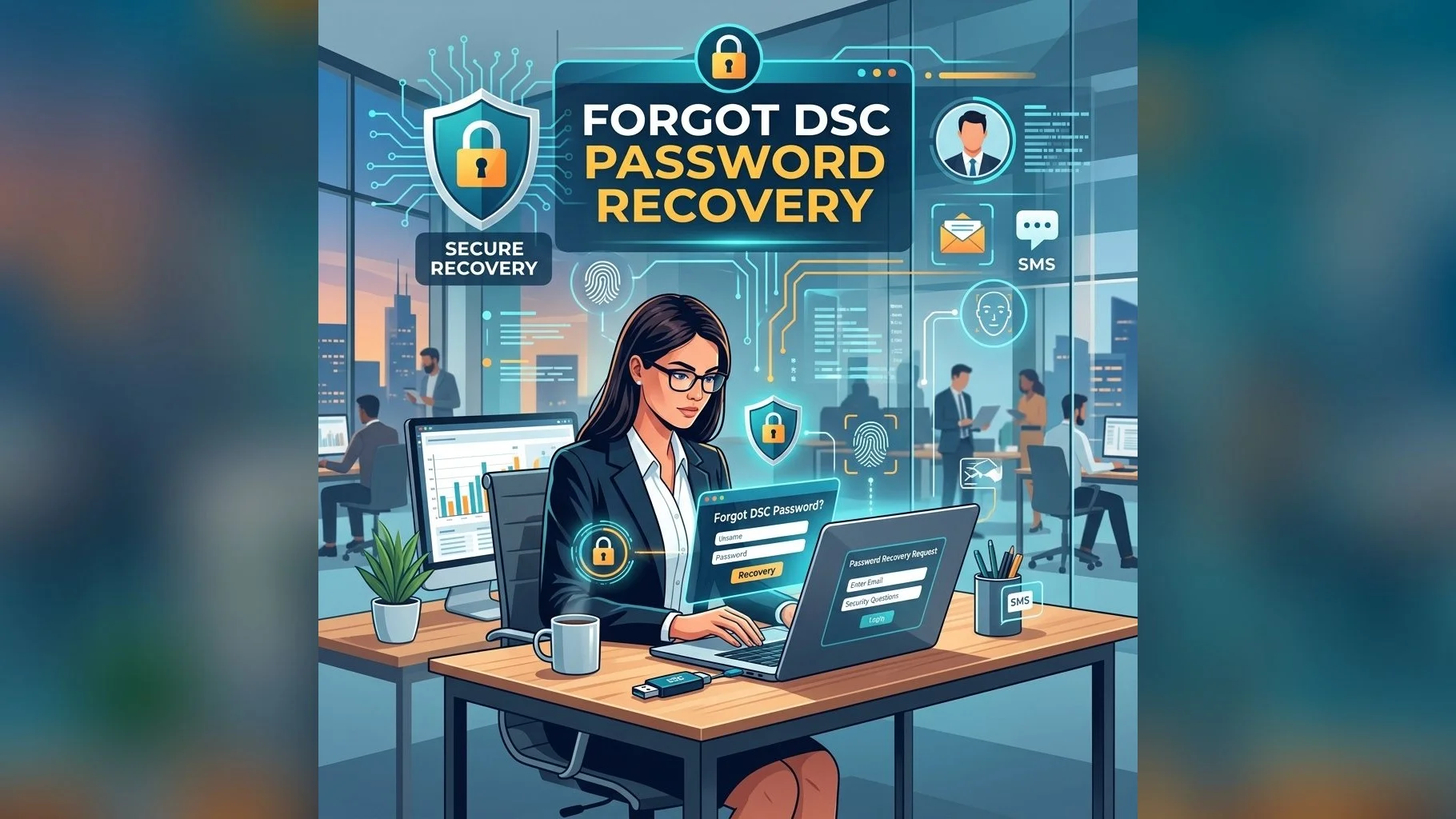
Forgetting your DSC USB token password (PIN) is more common than you might think. The good news is that there is a recovery process — as long as you haven't exhausted all your PIN attempts and triggered a lockout. Here's what you need to know.
Understanding Token PINs
Your USB token has two separate PINs:
- User PIN: The 6–8 digit PIN you enter each time you sign a document or login to a portal with your DSC. This is the "daily use" PIN.
- Security Officer (SO) PIN / Admin PIN: A separate, higher-privilege PIN used to reset the User PIN if it is forgotten or the token is locked. This is typically set during initial token setup.
If You Forgot Only the User PIN
If you remember (or have recorded) your SO PIN:
- Open your token management software (ePass2003 Manager, SafeNet Authentication Client, or Proxkey Utility)
- Go to "Token Management" or "Unblock User PIN" function
- Enter the SO PIN when prompted
- Set a new User PIN of your choice
- Your DSC remains intact — only the access PIN has changed
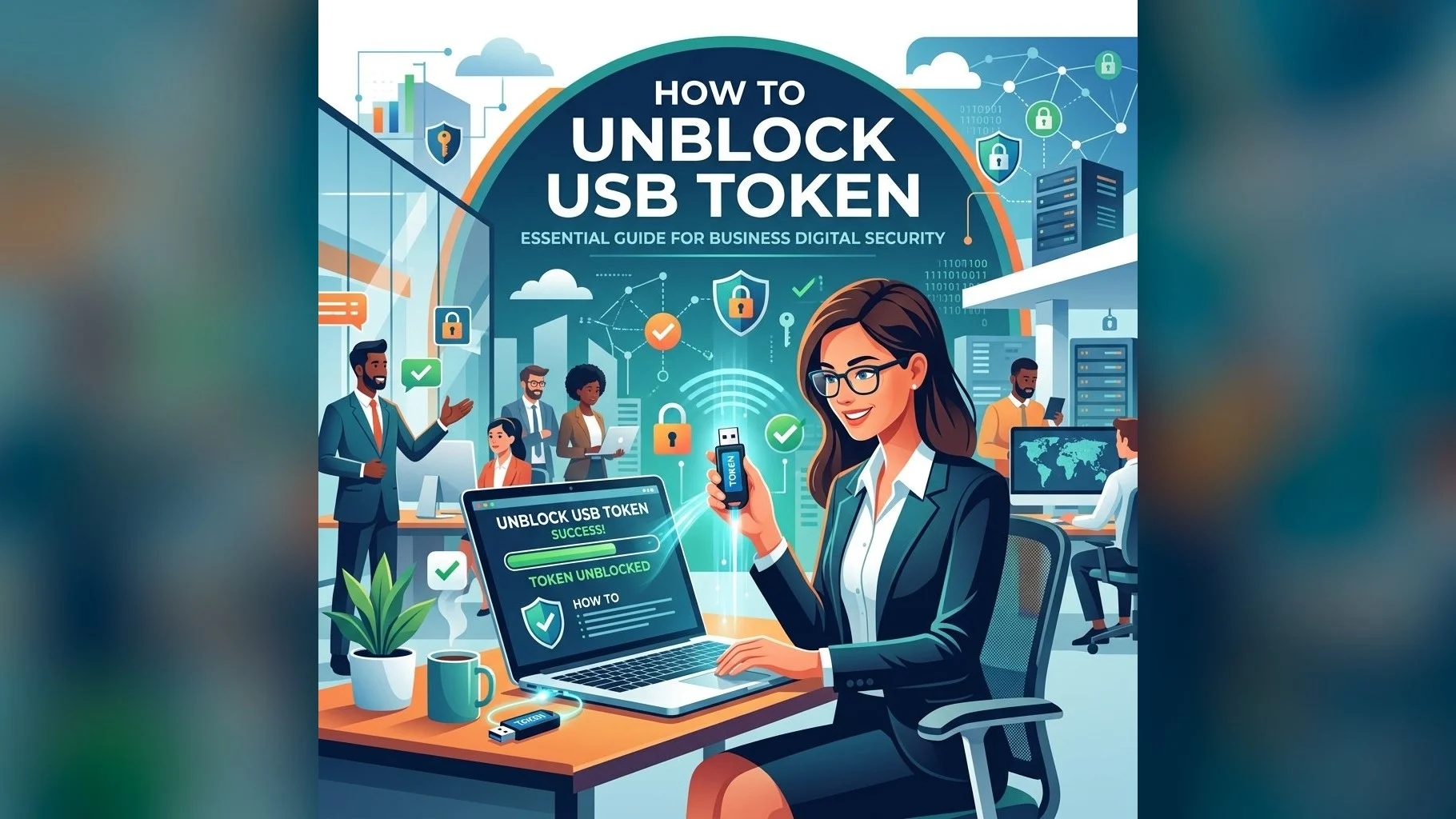
If Your Token is Locked
After a certain number of incorrect PIN attempts (typically 10), the User PIN locks. Use the SO PIN in the token software to unblock and reset it. If both the User PIN and SO PIN are locked/forgotten, the token must be reinitialised — which will erase the DSC stored on it, requiring a fresh DSC application.
Prevention Tips
- Record your User PIN and SO PIN in a secure location (password manager, sealed envelope)
- Never store PINs digitally on the same device as the token software
- If you manage tokens for multiple employees, maintain a secure PIN registry
Need Help with a Locked Token?
Our technical support team can help you retrieve your SO PIN or guide you through token reinitialisation.
Remember: if your DSC is lost due to token failure or PIN lockout, you need to apply for a fresh DSC. The new certificate issuance process takes 24 hours — contact us to get started immediately to minimise downtime for your filings.