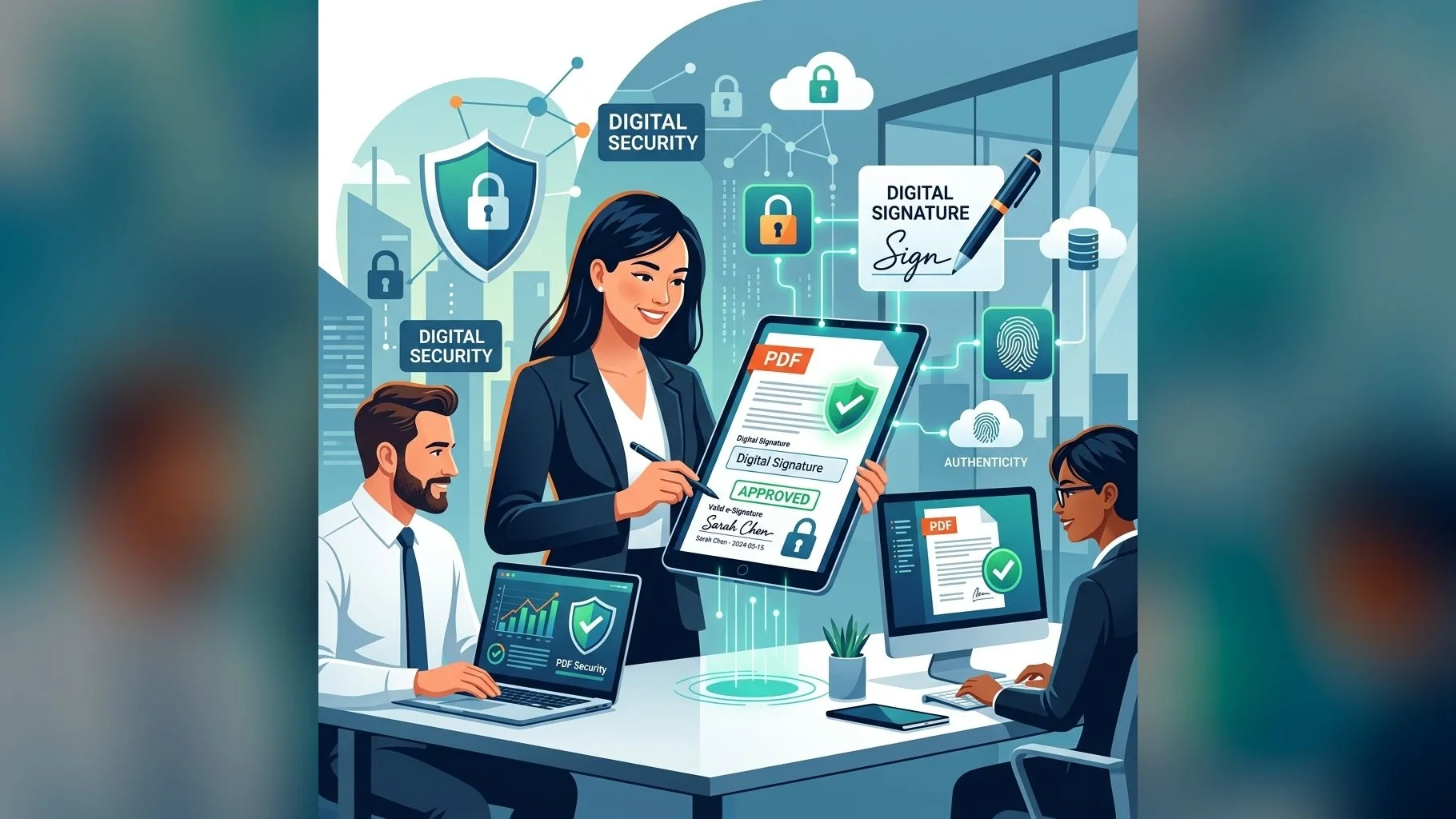
Digitally signing a PDF with your Class 3 DSC gives the document the same legal standing as a handwritten signature under the Information Technology Act, 2000. Whether you are signing a contract, a government form, or a board resolution, the process is straightforward once your USB token is set up correctly.
Method 1: Sign Using Adobe Acrobat Reader DC
Adobe Acrobat Reader DC (free) supports DSC-based signing on Windows. Follow these steps:
- Insert your USB token and open Adobe Acrobat Reader DC
- Open the PDF you wish to sign, click Tools → Certificates
- Click Digitally Sign and draw a signature field on the page
- In the Sign with a Digital ID dialog, select your DSC from the list
- Enter your USB token PIN when prompted
- Click Sign and save the PDF — a blue signature banner confirms validity
Ensure your DSC appears in the list. If it does not, install the token driver (ePass2003, SafeNet, or Proxkey) and restart Acrobat.
Method 2: Sign via Government Portal PDF Workflows
Many government portals (MCA, CBDT, GST, DGFT) have built-in DSC signing workflows. These typically use a Java applet or browser signing module:
- Download the PDF form from the portal and fill it out
- Upload the filled PDF to the portal's signing module
- The portal will prompt you to select a DSC and enter your PIN
- After signing, the portal generates a signed, stamped PDF
- Some portals use in-browser signing via emSigner — ensure the tool is installed and running
Common Issues When Signing PDFs
- Certificate not visible: USB token driver not installed or token not inserted properly
- Signature shows as unknown: Adobe's trust store may not include the Indian CA root — install the CCA India root certificate
- Signature greyed out: The PDF may be locked — open an unlocked copy
- Java errors: Update Java to the latest version; add the portal URL to Java's exception site list
- Wrong certificate selected: If multiple certificates are on the token, select the one matching the portal's requirement
Need a DSC for PDF Signing?
Get your Class 3 DSC issued in 24 hours. Works with Adobe Acrobat and all government portals.
After signing, always verify the signature in Adobe Acrobat (right-click the signature field → Validate Signature) to confirm it shows as valid. Keep your USB token driver and Adobe Acrobat updated to avoid compatibility issues.