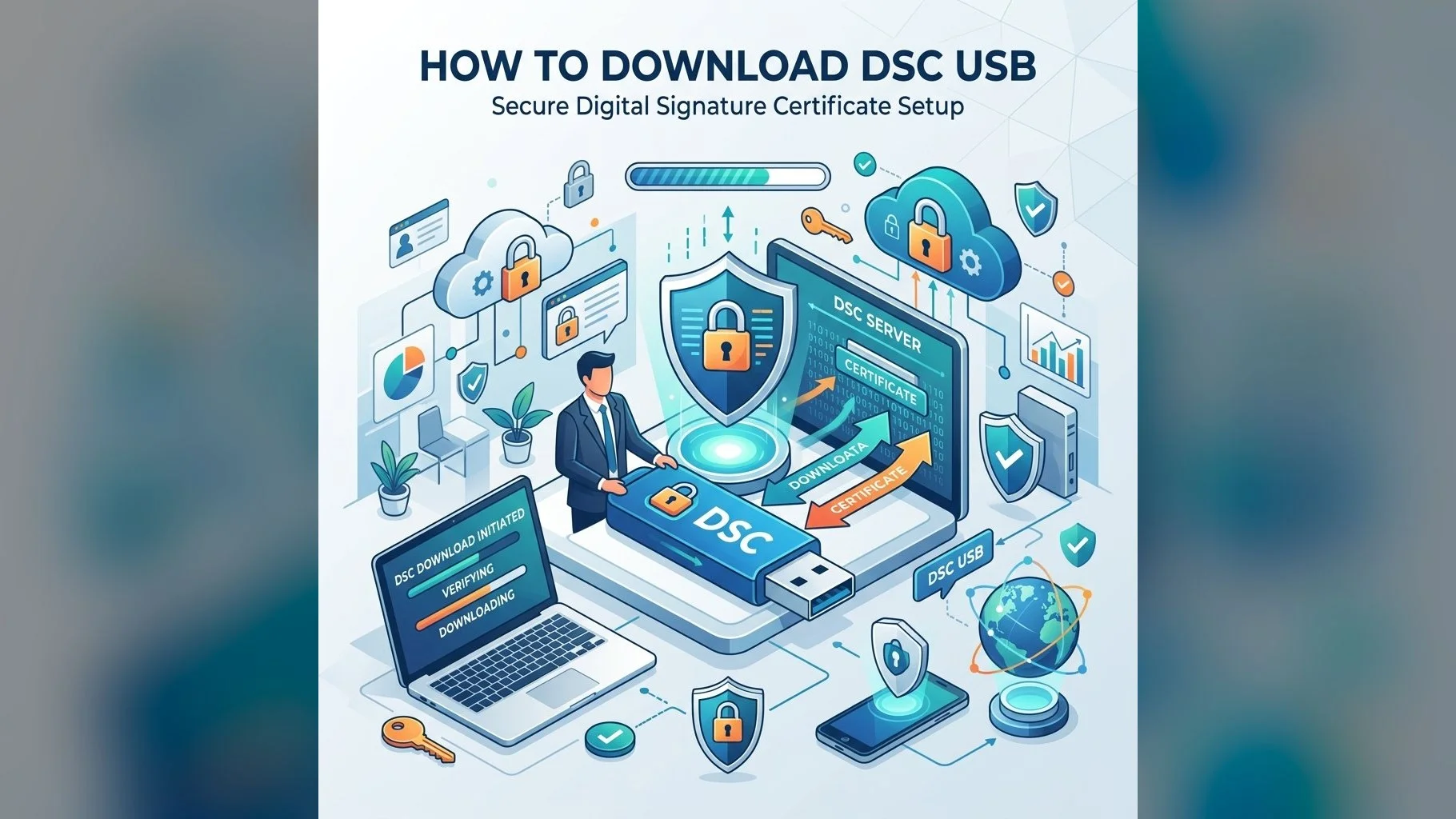
Once your DSC application is approved and the Certifying Authority issues the certificate, you need to download (also called "collect" or "import") it onto your FIPS-certified USB cryptographic token. This process is typically guided by our team, but understanding the steps helps you complete it smoothly.
Prerequisites Before Downloading
- A Windows PC (XP/7/8/10/11) — Mac users need the Mac-specific token driver
- USB token driver installed (ePass2003, SafeNet, Proxkey — matching your token brand)
- Java JRE 8 or later installed
- Your registered email ID and mobile number
- The reference number or link sent by the CA after approval
Downloading DSC from eMudhra
- Visit emudhra.com/dsc and login to your applicant portal
- Navigate to "Certificate Collection" and enter your application reference number
- Insert your USB token — the page will detect it automatically
- Click "Collect Certificate" and enter your token PIN to store the DSC
- A success message confirms the certificate is now on your token
Downloading DSC from Capricorn CA
- Visit capricornca.com and go to "Download Certificate"
- Enter your certificate request ID or the OTP sent to your registered mobile
- Insert USB token; select the token from the dropdown
- Enter token PIN and click "Download" — certificate saves to token automatically
Downloading DSC from Vsign
- Visit vsign.in and navigate to "Collect Certificate"
- Enter your transaction ID and mobile OTP
- The collection page detects your token — enter PIN to save the certificate
Verifying the Download
After downloading, verify the certificate is present on your token by:
- Opening the token management software and viewing stored certificates
- Or visiting any government portal that requires DSC login — your certificate should appear in the selection list
Having Trouble Downloading Your DSC?
Our team provides step-by-step remote assistance for DSC collection. Call or WhatsApp us.
If you encounter "Java not detected" or "Token not found" errors during collection, ensure your token driver is installed correctly and Java is version 8. Use Internet Explorer or Edge in IE compatibility mode for older CA portals that still require browser plugins.